

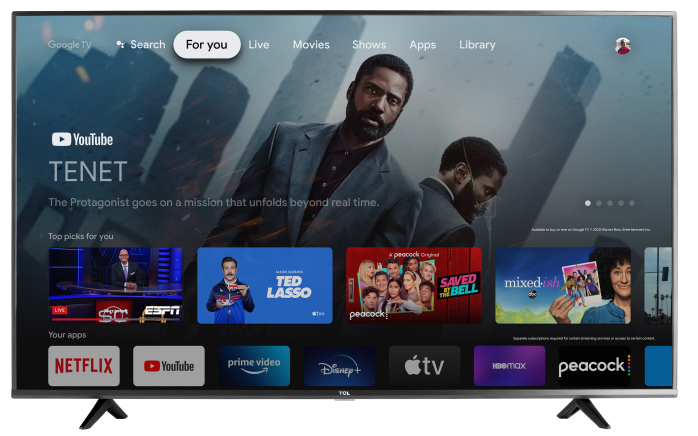
If your TCL Google TV freezes, starts slowly, responds slowly to remote commands or searches, or takes a long time to open apps, try the steps below.
Restart your TCL Google TV
Restarting the TV can help clear temporary system issues that may cause slow performance.
- From the Google TV home screen, go to Settings.
- Select System.
- Select Restart.
- Select Restart again to confirm.
After the TV restarts, check if performance has improved.
Close recently opened apps
Apps running in the background may slow down your TV.
- From the Google TV home screen, go to Settings.
- Select Apps.
- Under Recently opened apps, select an app.
- Select Force stop.
- Select OK to confirm.
- Repeat these steps for any other recently opened apps.
Check for app updates
Your TV may run slower while app updates are downloading or installing. Keeping apps updated can help improve performance.
- From the Google TV home screen, select Settings - Select Apps.
- Select Manage Apps .
- Select Updates.
- Select Update all, if updates are available.
Tip: To allow apps to update automatically, open Google Play Store, go to Settings, and turn on Auto-update apps.
Check for system updates
System updates may include performance improvements and bug fixes.
- From the Google TV home screen, go to Settings.
- Select System.
- Select About.
- Select System update.
- If an update is available, follow the on-screen instructions to install it.
Turn on Quick Start
Quick Start can help your TV power on faster.
Note: Menu names may vary slightly by model or software version.
- From the Google TV home screen, go to Settings.
- Select System.
- Select Power & Energy.
- Turn on Quick Start.
Clear app cache
Clearing cached data can help if an app is slow, freezes, or takes a long time to open. Cache files are temporary files stored by apps. Clearing the cache does not delete the app, but it may remove temporary files used by the app.
Clear the cache for one app
Use this option if only one app is slow or not working correctly.
- From the Google TV home screen, go to Settings.
- Select Apps.
- Select See all apps.
- Choose the app that is slow or not working correctly.
- Select Clear cache.
- Select OK to confirm.
After clearing the cache, open the app again and check if performance has improved.
Clear the cache for all apps at once
Use this option if the entire TV feels slow or multiple apps are not responding correctly.
- From the Google TV home screen, go to Settings.
- Select System.
- Select Storage.
- Select Free Up Storage.
- Select Cached data.
- Select OK to clear cached data for all apps.
After clearing cached data, restart your TV and check if performance has improved.
Note: Menu names may vary slightly by model or software version.
Additional tips
If your TV is still slow, try the following:
- Make sure your internet connection is stable, especially when streaming or using apps.
- Remove apps you no longer use.
- Allow any active updates to finish before testing performance again.
- If the issue started after installing a specific app, force stop or uninstall that app and test again.
If your TCL Google TV continues to freeze, lag, or respond slowly after trying these steps, please contact TCL Support for further assistance.