

If your TCL Google TV won’t connect to the internet, is constantly disconnecting, or apps won’t load, follow the steps below to check your connection status and restore Wi-Fi.
1) Check your Network & Internet status
- On your TCL Google TV remote, press the Settings (gear) button to open the Quick Settings panel.
- Select Settings.
- Scroll to Network & Internet.
- Confirm Wi-Fi is On.
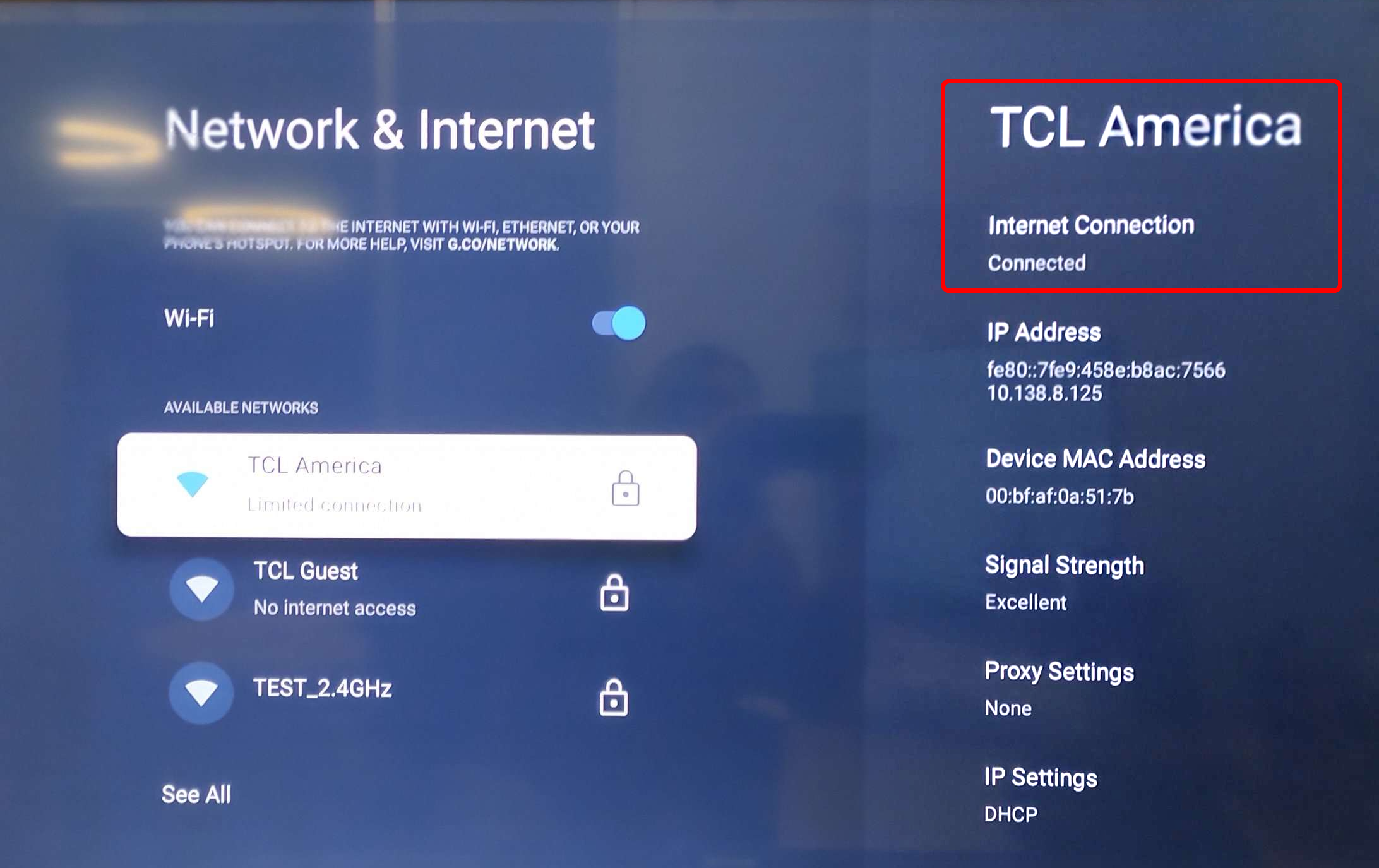
- Look at your connected network:
- If your home network is selected, it should show Internet connection: Connected (wording may vary slightly by model/software version).
Tip: If you see Connected (No internet) or Not connected, continue below.
2) Run “Check Internet Connection”
- Press the Back arrow on the remote to return to the Network & Internet menu.
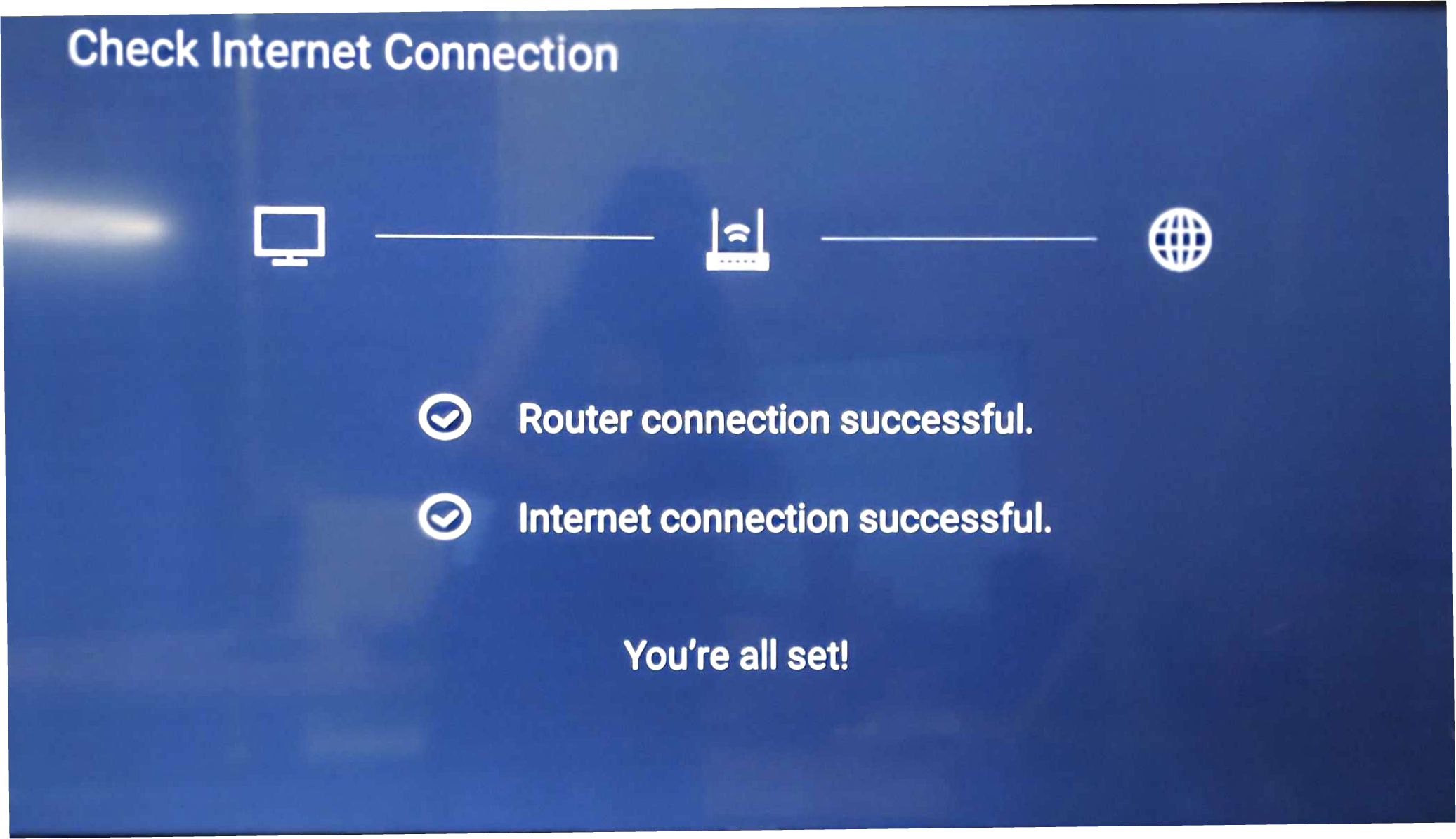
- Scroll to Check internet connection.
- Press OK/Select and follow the on-screen results.
- This test helps confirm whether the TV can reach the internet (not just your Wi-Fi).
3) If Wi-Fi is on but you’re not connected
Try these quick fixes in order:
A) Reconnect to your Wi-Fi network
- Go to Settings > Network & Internet.
- Select your Wi-Fi network.
- Choose Disconnect (if available), then reconnect and enter the password again.
B) Forget the network and add it again
- Go to Settings > Network & Internet.
- Select your Wi-Fi network.
- Choose Forget.
- Re-select the network from the list and re-enter your Wi-Fi password.
4) Restart your network and TV
- Connectivity issues are often resolved with a restart.
- Restart your router/modem: Unplug power for 30 seconds, then plug back in.
- Restart your TV:
- Go to Settings > System > Restart (if available), or power off/on.
- After everything powers back up, run Check internet connection again.
5) Improve connection reliability
- If the TV connects but streaming buffers or drops:
- Move the TV closer to the router (even a few feet can help).
- Avoid placing the TV in tight cabinets or recessed areas.
- If your router supports both bands, try switching between 2.4 GHz (better range) and 5 GHz (often faster, shorter range).
- Reduce congestion by pausing large downloads/updates on other devices.
6) If only one app won’t connect
- If the TV shows the internet is connected but a specific app won’t load:
- Close and reopen the app.
- Check if other apps work.
- Restart the TV.
- Update the app (if available) and check for a system update under Settings > System > About > System update (menu wording can vary).