

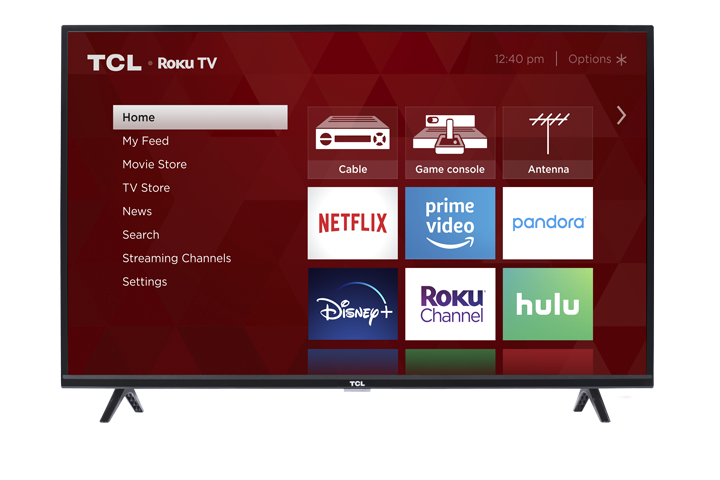

If fast scenes on your TCL Roku TV look blurry, choppy, or too smooth, it’s usually related to your TV’s motion settings, picture mode, or the signal from your device or app.
This guide will walk you through simple steps to improve motion on your TCL Roku TV.
1. Common Motion Problems You Might Notice
You may see:
- Motion blur – fast-moving objects (like a ball or a player) look smeared.
- Judder or stutter – camera pans or slow movement look choppy.
- Soap opera effect – movies look overly smooth or “video-like.”
- Ghosting / double images – faint trails behind moving objects.
- Motion looks different on different apps or inputs – for example, smooth on cable, but choppy on a streaming app.
Most of these issues can be improved by adjusting your picture and motion settings.
2. Check and Change the Picture Mode
Different picture modes use different motion settings. For example, Sports may use more motion smoothing, while Movie or Cinema keeps motion closer to the original look of the film.
You can change picture mode while watching something.
While watching TV or streaming:
- Press the ✱ (Star) button on your Roku remote.
- Select Picture settings.
- Go to Picture mode.
- Try modes like Movie, Normal/Standard, or Sports.
- Watch the same fast scene and switch between modes to see which looks best to you.
Tip: Movie mode often looks the most natural for movies and shows, while Sports may be better for live sports.
3. Adjust Motion Settings (Action Smoothing / LED Motion)
Many TCL Roku TVs include motion controls in the Advanced picture settings menu. On some models you may see:
- Action Smoothing – motion interpolation (adds frames to make motion look smoother)
- LED Motion Clarity or LED Motion – can reduce blur by blinking the backlight
To adjust these:
- Start playing a show, movie, or sports content.
- Press the ✱ (Star) button on your Roku remote.
- Select Picture settings ➜ Advanced picture settings.
- Look for Action Smoothing and LED Motion Clarity / LED Motion (names may vary by model).
Then adjust based on what you’re seeing:
If everything looks too smooth or “soap opera”-like
- Set Action Smoothing to Off or Low.
- Avoid High unless you prefer a very smooth, video-like look.
If motion looks choppy or juddery
- Try setting Action Smoothing to Low or Medium to slightly smooth motion.
- Watch a scene with slow camera pans and see what looks more natural.
If sports look blurry when things move fast
If your TV has LED Motion Clarity / LED Motion, try turning it On.
Note: This feature can help with clarity in motion but may slightly dim the picture.
After each change, watch a short sports clip or action scene to find the combination you like best.
4. Check Game Mode and Other Special Modes
If you use a game console (like PlayStation, Xbox, or Switch) or a PC, Game Mode is useful for reducing input lag, but it can change motion processing.
While on the HDMI input for your console:
- Press the ✱ (Star) button.
- Choose Picture settings.
- Look for a Game picture mode or a Game Mode option under Advanced picture settings.
- For gaming, use Game mode or turn Game Mode On for better responsiveness.
- If you’re watching movies or shows on that same HDMI input, try using Movie or Normal/Standard mode instead, with Game Mode Off, so the TV can apply more motion smoothing if desired.
Each HDMI input can remember its own picture and motion settings, so if motion looks odd only on one input, double-check that input’s settings.
5. Check Your Source Device and HDMI Cable
Sometimes motion issues come from the device or signal, not the TV itself.
Check your HDMI cable and port
- Make sure the HDMI cable is firmly connected to both the TV and the device.
- Use a High Speed HDMI or Ultra High Speed HDMI cable for 4K and higher frame rates.
- If possible, try a different HDMI port on the TV and see if motion improves.
Check your device’s video settings
On your cable box, streaming box, game console, or Blu-ray player:
- Go into the device’s Display or Video settings.
- Confirm resolution and refresh rate (for example, 1080p 60Hz or 4K 60Hz, depending on your TV and device).
- If the device has its own motion smoothing, frame interpolation, or gaming features like VRR (Variable Refresh Rate), try turning those Off temporarily to see if motion improves.
If motion looks good with built-in Roku apps (Netflix, YouTube, etc.) but not with a specific external device, the issue is likely in that device’s settings or signal.
6. Compare Different Apps and Content
Not all video sources are equal—some apps and streams simply look smoother than others.
- Try the same show or movie in another app, if available, and compare motion.
- Try a different type of content: a movie, a sports event, a YouTube clip.
- If only one app looks bad, try:
- Closing the app and reopening it.
- Restarting the TV (see next section).
If other apps and channels look fine, the issue is likely specific to that app or stream.
7. Reset Picture Settings
If you’ve made lots of changes and don’t like the result, you can reset picture settings for that input.
- While watching content, press the ✱ (Star) button.
- Select Picture settings.
- Look for Reset picture settings or Reset to default (wording may vary).
- Confirm reset.
This will return the picture and motion options for that input back to factory defaults. You can then make small adjustments again until you’re happy with the result.
8. Restart the TV and Check for System Updates
Restart (power cycle) your TCL Roku TV
Option 1 – Using the menu:
- Press Home on your Roku remote.
- Go to Settings ➜ System ➜ Power (if available) ➜ System restart ➜ Restart.
Option 2 – Unplugging:
- Turn the TV off.
- Unplug the power cord from the wall outlet.
- Wait about 30 seconds.
- Plug it back in and turn the TV on.
Check for Roku system updates
- Press Home on your Roku remote.
- Go to Settings ➜ System ➜ System update.
- Select Check now.
If an update is available, install it and then test motion again. Updates can include performance improvements and bug fixes.