

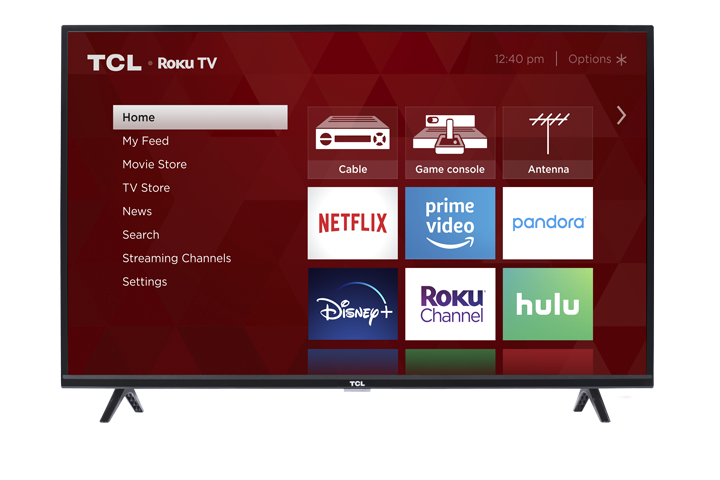

If your TCL Roku TV powers on but the screen remains black or blank, follow the troubleshooting steps below in order.
These steps can help determine whether the issue is related to:
- The TV’s power connection
- The selected input
- A connected HDMI device or cable
- A temporary software issue
- The TV’s backlight or display
- A picture-only issue rather than a complete loss of power
Note: Button locations, status-light behavior, and available features may vary depending on your TCL Roku TV model.
Before You Begin
A black screen does not always mean the TV has no power.
The TV may still be operating if you notice:
- Sound from a program, app, or menu
- The status light blinking when a remote button is pressed
- A startup sound
- The screen briefly lighting up
- A faint image visible on the screen
- The TCL or Roku logo briefly appearing
Why this is important:
These signs can help distinguish a display problem from a no-power problem. If the TV responds to commands or produces sound, it is likely turning on, but the picture is not displaying correctly.
Step 1: Confirm the TV Has Power and Is Responding
Check the status light on the front or bottom of the TV.
The light’s behavior can vary by model, but you may notice it turn on, turn off, blink, or change when the TV receives a command.
Press the following buttons on the Roku remote:
- Power
- Home
- Volume Up
Watch the status light while pressing each button.
Why this step is needed:
If the status light reacts, the TV is likely receiving the remote command. This indicates that the TV has power and helps narrow the issue to the picture, input, or display system.
If There Is No Sign of Power
- Make sure the power cord is firmly connected to the TV and wall outlet.
- If the power cord is removable, disconnect and reconnect both ends.
- Plug the TV into a wall outlet that has been confirmed to work.
- During troubleshooting, connect the TV directly to the wall.
- Do not use a power strip, surge protector, extension cord, or smart plug.
Test the outlet with another device, such as a lamp or phone charger.
Why this step is needed:
A loose power cord, nonworking outlet, or failed power accessory may prevent the TV from receiving enough power. Connecting directly to a known working outlet eliminates these items as possible causes.
If the TV has no lights, sounds, or other response, refer to the TCL Roku TV No Power troubleshooting guide.
Step 2: Try to Open the Roku Home Screen
Press the Home button on the Roku remote two or three times, waiting several seconds between each press.
You can also press another navigation button, such as the directional pad, to make sure the display has not been turned off while audio continues playing.
Why this step is needed:
Opening the Roku Home screen bypasses the currently selected external input. If the Home screen appears, the TV display is working and the problem is more likely related to an external device, HDMI connection, or selected input.
What the Result Means
- The Roku Home screen appears: Check the external device, HDMI cable, and selected input.
- The screen remains black: Continue to the next step.
Step 3: Check the Selected Input
A black screen may appear when the TV is set to an input that does not have an active video signal.
Use the Roku Home screen or the TV’s physical button to check each available input, such as:
- HDMI 1
- HDMI 2
- HDMI 3
- AV
- Live TV
If you are using an external device, make sure the TV is set to the input where that device is connected.
Why this step is needed:
Each HDMI or AV port appears as a separate input. If the wrong input is selected, the TV may display a black screen even though the television and connected device are both working.
Step 4: Check the Connected Device and HDMI Cable
If the black screen only occurs while using a cable box, game console, Blu-ray player, streaming device, computer, or other external equipment:
- Make sure the connected device is turned on.
- Turn the device off and back on.
- Disconnect the HDMI cable from the TV and external device.
- Reconnect both ends firmly.
- Try a different HDMI port on the TV.
- If available, test with another HDMI cable.
Why this step is needed:
A loose, damaged, or improperly connected HDMI cable may carry sound without displaying a picture, or it may fail to send any signal at all.
Testing another cable and HDMI port helps determine whether the issue is caused by the TV, the cable, the selected port, or the connected device.
Step 5: Disconnect All External Devices
- Turn off the TV.
- Unplug the TV from the wall outlet.
-
Disconnect every external device, including:
- HDMI devices
- Cable or satellite boxes
- Game consoles
- Streaming players
- Soundbars and receivers
- USB drives
- Antennas
- Leave only the TV’s power cord connected.
- Plug the TV directly into the wall outlet.
- Turn the TV on.
- Press the Home button on the Roku remote.
Why this step is needed:
A connected device, damaged cable, or HDMI control command can sometimes interfere with the TV’s startup or video signal.
Disconnecting everything allows the TV to start independently and helps determine whether the black screen is being caused by external equipment.
If the Roku Home Screen Appears
Reconnect the external devices one at a time. Test the TV after connecting each device.
Why reconnect devices individually:
Testing one device at a time helps identify the specific device, cable, or HDMI port causing the problem.
Step 6: Power-Cycle the TV
A full power cycle can clear a temporary software or electrical issue.
- Turn off the TV.
- Unplug it from the wall outlet.
- Wait at least 60 seconds.
- While the TV is unplugged, press and hold the TV’s physical Power button for approximately 10 to 15 seconds, if available.
- Release the button.
- Plug the TV directly into the wall outlet.
- Turn the TV on.
- Press the Home button on the remote.
The physical Power button is commonly located:
- Under the TCL logo
- Along the bottom edge of the TV
- On the back panel
- On the side of the TV
Why this step is needed:
A temporary system lockup may allow the TV to appear powered on while preventing the picture from loading.
Unplugging the TV allows the internal electronics to shut down fully. Holding the physical Power button while the TV is unplugged helps discharge remaining electrical power and clears the temporary system state.
Waiting the full 60 seconds is important. Quickly unplugging and reconnecting the TV may not give it enough time to reset completely.
Step 7: Check for Sound
Turn the TV on and press Volume Up on the remote.
Listen for:
- Program or app audio
- Menu sounds
- A volume indicator sound
- Audio from a connected soundbar or receiver
You can also press Home and use the directional buttons to listen for menu sounds.
Why this step is needed:
Sound without a visible picture confirms that the TV is turning on and processing audio. This makes a no-power issue less likely and may point to the backlight, display, or video system.
If you are using a soundbar, temporarily disconnect it and listen for sound through the TV speakers.
Why disconnect the soundbar:
This helps confirm whether the sound is coming from the TV itself or only from a connected device.
Step 8: Check for a Very Dim Picture
In some cases, the TV may be producing an image, but the screen’s backlight is not illuminating it.
To check:
- Turn the TV on.
- Darken the room as much as possible.
- Hold a flashlight several inches away from the screen.
- Shine the light across the screen at an angle.
- Look closely for faint shapes, menus, movement, or images.
Do not press the flashlight against the screen.
Why this step is needed:
The screen uses a backlight to make the image visible. If the backlight is not operating, the image may still be present but too dark to see under normal lighting.
What the Result Means
- A faint image is visible: The TV may have a backlight-related issue and may require service.
- No image is visible: The issue may involve the display, video system, or another internal component.
The flashlight test is only a basic observation and does not identify the exact failed component.
Step 9: Observe What Happens During Startup
Unplug the TV for 60 seconds, reconnect it, and then turn it on while watching the screen carefully.
Look for:
- The TCL logo appearing and disappearing
- The Roku logo briefly appearing
- The screen flashing or becoming slightly brighter
- Part of the screen lighting up
- Lines, discoloration, or distorted images
- The picture appearing briefly before going black
Why this step is needed:
The way the screen behaves during startup may help determine whether the TV is completing the startup process or whether the display stops working after it begins.
Make note of exactly what appears and how long it remains visible. This information can be helpful when contacting TCL Support.
If the Screen Is Black Only on One App or Device
If the Roku Home screen displays normally but the screen becomes black only when using a particular app, input, or device, the TV’s display is likely working.
Try the following:
- Exit and reopen the app.
- Restart the connected device.
- Reconnect the HDMI cable.
- Try another HDMI port.
- Try another HDMI cable.
- Check whether other apps or inputs display correctly.
- Restart the TV.
Why these steps are needed:
A problem limited to one source is more likely caused by that app, device, cable, or input than by the TV screen itself.
When to Contact TCL Support
Contact TCL Support if:
- The screen remains black after completing all troubleshooting steps.
- The TV produces sound but never displays a picture.
- A faint image is visible during the flashlight test.
- The TCL or Roku logo appears briefly and then disappears.
- The screen flashes, shows lines, or displays only part of an image.
- The TV repeatedly restarts without reaching the Roku Home screen.
- The status light responds, but the screen remains completely blank.
- The problem occurs with all apps and inputs.
Turn off and unplug the TV immediately if you notice:
- Smoke
- Sparks
- A burning smell
- Excessive heat
- A damaged power cord
- Cracked or physically damaged screen components
When contacting TCL Support, have the following information available:
- TV model number
- TV serial number
- Approximate purchase date
- Status-light behavior
- Whether the TV produces sound
- Whether a faint image was visible with a flashlight
- Whether the TCL or Roku logo appeared
- A summary of the troubleshooting steps completed
Why this information is helpful:
These details help the support representative determine whether the issue is related to the TV’s power system, software, external devices, backlight, or display.
Additional Video Assistance
For a visual walkthrough of the recommended steps, review the following video:
Restoring Your TCL Roku TV’s Picture
Black-screen problems are often caused by an incorrect input, a loose HDMI connection, a connected device, or a temporary system issue. Checking each area in order can help identify the source without changing unnecessary settings.
If the screen remains black after the TV has been power-cycled, all external devices have been disconnected, and the Roku Home screen still does not appear, contact TCL Support for further assistance.