How to Restart Your TCL Roku TV

Restarting your TCL Roku TV can help resolve common issues like freezing, slow performance, apps not loading, audio/video glitches, or missing menu items—without deleting your apps or settings.


  • Press Home on your Roku remote to open the main screen.
  • Select Settings.
  • Select System.
  • Select Power (if you see it).
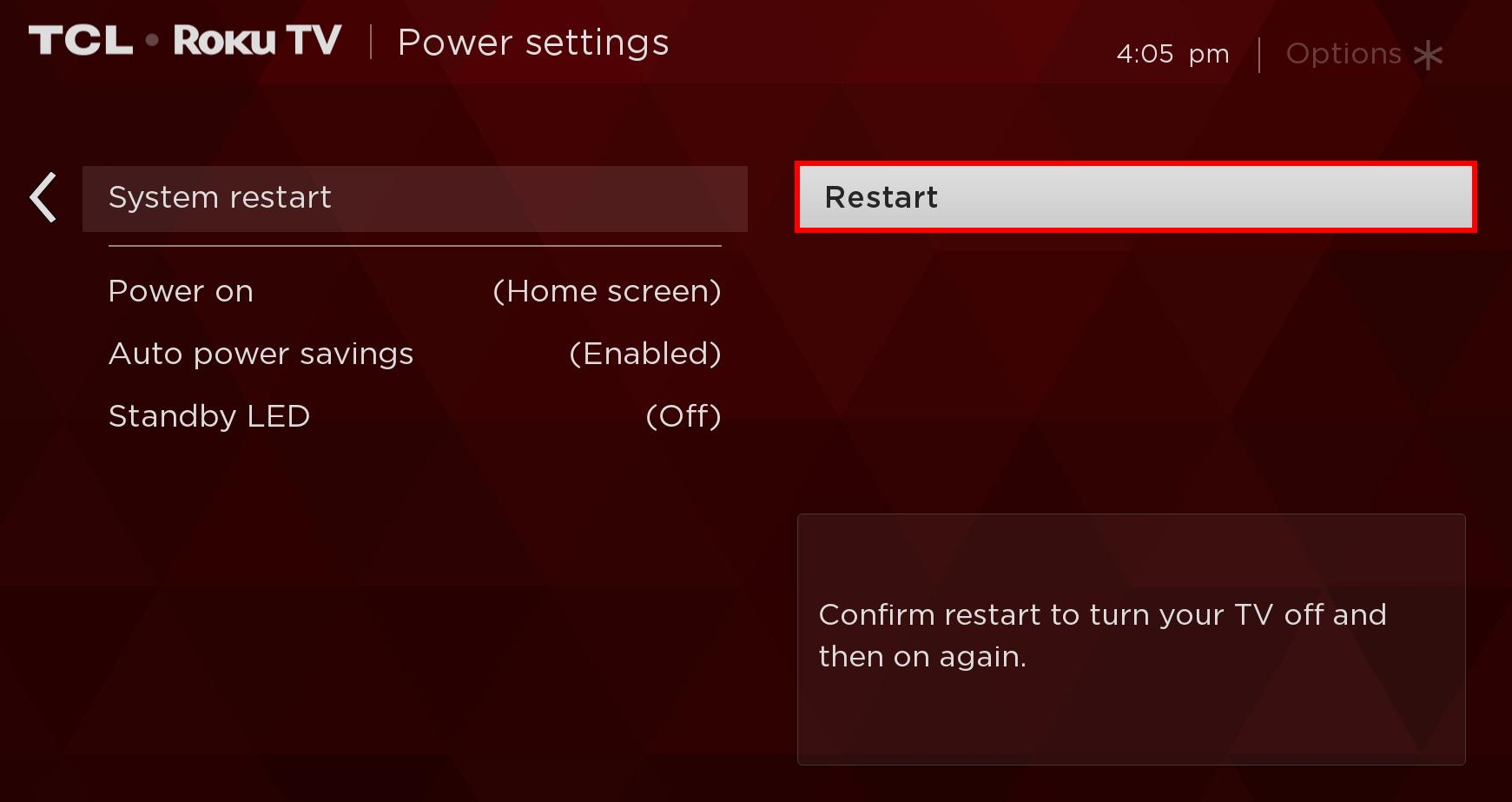
  • Select System restart.
  • Select Restart to confirm.
  • Note: It can take a few minutes for the TV to fully restart.

If you don’t see “Power”

  • Some Roku TV software versions/models may not show a Power submenu. If that happens, use:
  • Settings > System > System restart

If you can’t access menus: Power-cycle restart (no settings needed)

  • Unplug the TV from the power outlet.
  • Wait 60 seconds.
  • Plug the TV back in and turn it on.
  • This is often helpful if the TV is frozen, the remote won’t navigate menus, or the screen is stuck.

Troubleshooting if the restart option won’t work

Remote isn’t responding

  • Replace the remote batteries and try again.
  • Use the Roku Mobile App as a temporary remote (if your phone and TV are on the same Wi-Fi network).

TV keeps acting up after restarting

Try these quick fixes next:

  • Restart your internet router/modem (unplug 30–60 seconds, then reconnect).
  • Check for a system update after the restart: Settings > System > System update.
  • If the TV still won’t behave normally after multiple restarts, you may need a factory reset as a last resort (this erases apps/settings).

If you need additional support, please reach out to us at TCL Support. We are happy to help.

Did this article resolve your issue or answer your question without contacting TCL Support?

Can’t find what you’re looking for?

The TCL Support Team is here to help.

Contact Us
x

How can we improve the content?