

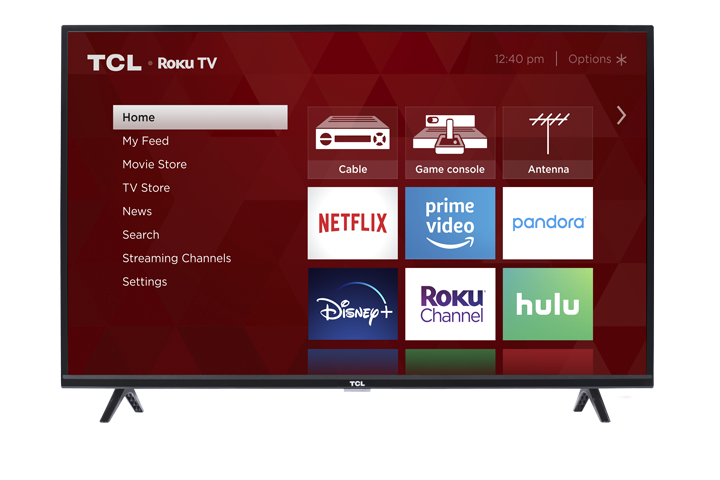
If an app on your TCL Roku TV is not opening, freezing, buffering, missing content, or not working as expected, try the steps below.
Note: Settings may appear slightly different based upon model and software version
1. Check Your Internet Connection
Many apps require a strong internet connection to load and play content properly.
- Press the Home button on your Roku remote.
- Go to Settings.
- Select Network.
- Select Check connection.
If the connection test fails, restart your modem/router and try again.
2. Check for App Updates
Roku apps, also called channels, may need updates to work correctly.
- Press Home on the remote.
- Highlight the app that is having trouble.
- Press the Star (*) button on the remote.
- Select Check for updates, if available.
3. Check for Roku System Updates
Keeping your TV software up to date can help resolve app issues.
- Press Home on the remote.
- Go to Settings.
- Select System.
- Select Software update.
- Select Check now.
Install any available updates, then try the app again.
6. Remove and Reinstall the App
If only one app is having trouble, removing and reinstalling it may help.
- Press Home on the remote.
- Highlight the app.
- Press the Star (*) button.
- Select Remove app or Remove channel.
- Restart the TV.
- Go to Streaming Store.
- Search for the app and install it again.
After reinstalling, open the app and sign in again if needed.
7. Sign Out and Sign Back In
Some app issues are related to account authentication.
Open the app and look for a Sign Out, Log Out, or Account option. Sign out of the app, then sign back in using your account credentials.
8. Confirm the App Subscription or Account Status
Some apps require an active subscription, TV provider login, or separate account.
If the app opens but certain content will not play, confirm that:
- Your subscription is active.
- You are using the correct login information.
- The content is included with your plan.
- Your TV provider, if required, is supported by the app.
9. Try Another App
Open a different streaming app to see if it works.
If other apps work normally, the issue may be with the specific app or service. If multiple apps are not working, the issue may be related to the network connection or TV software.
10. Check if the App Service Is Having an Outage
Sometimes an app may not work because the app provider is experiencing a service issue. Try checking the app provider’s website or support page for outage information.
11. Factory Reset as a Last Step
A factory reset will erase downloaded apps, account sign-ins, settings, and preferences. Only try this after completing the steps above.
- Press Home on the remote.
- Go to Settings.
- Select System.
- Select Advanced system settings.
- Select Factory reset.
- Follow the on-screen instructions.
After the reset, set up the TV again and reinstall the app.