

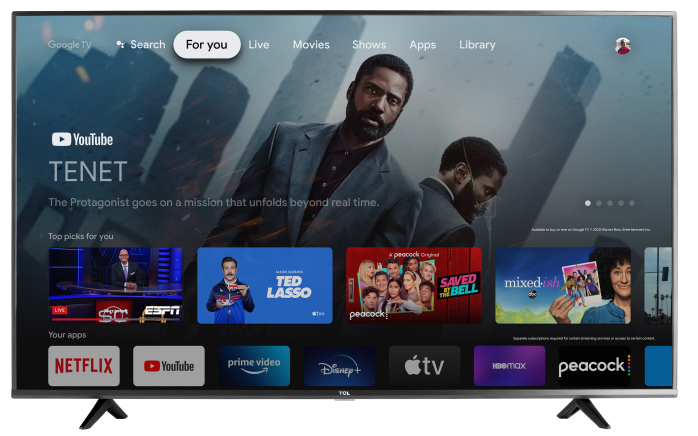

If you just set up a new TCL Google TV and now you can’t sign in because you tried too many times, don’t worry—this is usually a temporary security lock. Follow the steps below to get back into your account safely.
Why this happens
Google may temporarily block sign-in on a device after multiple failed attempts to help protect your account from unauthorized access. This can happen if:
- The email or password was entered incorrectly a few times
- The account has security verification turned on (2-Step Verification)
- The TV’s date/time or internet connection isn’t stable during setup
Step 1: Wait, then try again
- A “too many attempts” lock is often time-based.
- Leave the TV powered on and connected to the internet.
- Wait at least 15–30 minutes, then try signing in again.
- If it still won’t allow sign-in, wait a bit longer (sometimes it can take longer depending on the security lock).
Tip: Avoid repeated attempts back-to-back—this can extend the lockout.
Step 2: Confirm your internet connection
- A weak or unstable connection can cause sign-in errors during setup.
- Press Home on your remote.
- Go to Settings > Network & Internet.
- Make sure Wi-Fi is connected (or Ethernet is plugged in).
- Try opening an app like YouTube to confirm the connection is working.
Step 3: Verify your Google password on a phone or computer
Before trying again on the TV, confirm you can sign in successfully elsewhere:
- On a phone or computer, sign in to your Google account using the same email and password you’re entering on the TV.
- If Google asks you to verify your identity (text code, email prompt, authenticator), complete those prompts.
- If you need to reset your password, do that first—then use the new password on the TV.
- Important: If you changed your password recently, Google may temporarily block sign-in on new devices. Waiting a bit and trying again usually resolves it.
Step 4: Use the “Sign in with your phone” option (recommended)
- This often works better than typing credentials on the TV.
- On the TV sign-in screen, choose Sign in with your phone (or Use your phone or computer).
- Follow the on-screen instructions to confirm the code on your phone.
- Complete any security prompts on your phone if requested.
Step 5: Check Date & Time settings
Incorrect date/time can prevent secure sign-in.
- Press Home > Settings.
- Go to System > Date & time.
Turn on:
- Automatic date & time
- Automatic time zone
- Restart the TV and try signing in again.
Step 6: Restart the TV (quick reset)
- Unplug the TV from power.
- Wait 60 seconds.
- Plug it back in and try again.
Step 7: Factory reset (last resort)
- If you’re stuck in setup and nothing else works, a reset can clear the loop.
- On the setup screen (if available), look for Reset or Start over
- Or, if you can access settings: Settings > System > About > Factory reset
Note: A factory reset removes downloaded apps and sign-in data from the TV.
If you still can’t sign in
- You may be dealing with an account security lock or verification requirement.
- Try again after more time has passed
- Confirm your Google account can sign in on another device
- If you use 2-Step Verification, make sure you have access to your verification method (phone, authenticator, recovery email)