

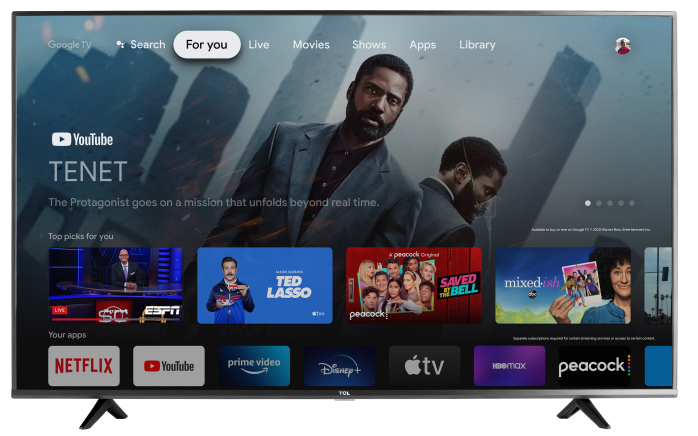
Keeping your TCL Google TV up to date helps ensure you have the latest features, security patches, and performance improvements. To download and install updates, your TV must be connected to the internet.
Note: Settings may vary based upon model and software.
Before you start
- Connect your TV to Wi-Fi or Ethernet (if your model has a LAN port).
- During an update, don’t unplug the TV or turn off power at the outlet. Let the update finish and restart normally.
Check for a software update (manual update)
Method 1: Using the Settings button / Quick Settings panel (common on TCL Google TVs)
- Press the Settings button on your remote (or press Home, then open Settings using the gear icon).
- Select the Settings gear (All settings).
- Go to System > About > System update.
- Select Network Update (or Check for update, depending on your software version).
- If an update is available, follow the on-screen prompts to download and install.
- When finished, your TV will restart automatically.
Method 2: Google TV standard path (may show “Check for update”)
- From the Google TV home screen, go to Settings.
- Select System.
- Select About.
- Select System update.
- Select Check for update and install if available.
Note: Menu labels can vary slightly by model and software version, but the update path is typically under System > About > System update.
Enable Automatic Updates (Optional)
If your TV provides the option, you can enable auto updates so your TV stays current with less effort:
- Go to Settings > System > About > System update.
- Toggle Auto Update to On.
Tip: Some Google TV software builds may handle updates automatically without showing an on/off toggle. If you don’t see Auto Update, your TV may already be managing updates in the background.
Troubleshooting: Update won’t start, fails, or gets stuck
1) Confirm the internet connection
- Go to Settings > Network & Internet and confirm you’re connected.
- Restart your router/modem (unplug 30–60 seconds, then reconnect).
- If possible, try Ethernet for a more stable connection during the update.
2) Restart the TV and try again
- Go to Settings > System > Restart (if available), then re-check for the update.
3) Free up storage (if the TV reports low space)
- Uninstall apps you don’t use and try again. Low storage can prevent downloads or installation from completing.
4) Try again later
- Updates can roll out gradually or be impacted by temporary server/network conditions. If your TV says it’s up to date but you expect an update, check again later.
Quick clarification: System updates vs. app updates
- System updates (the steps above) update the TV’s operating system and core software.
- App updates are managed through the Google Play Store settings (separate from system updates).
If you need additional support, please reach out to us at TCL Support. We are happy to help.