

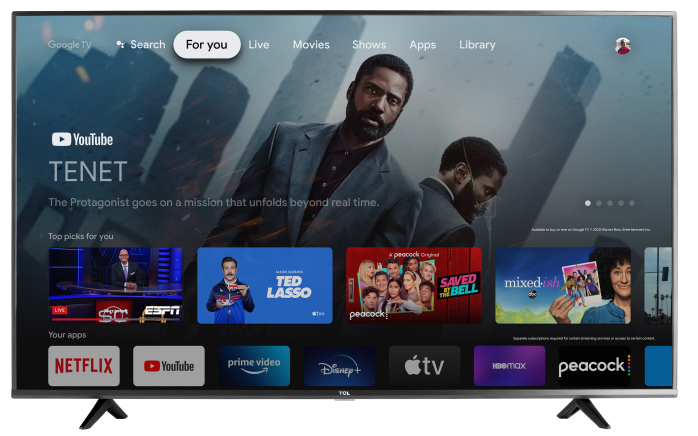

If your TCL Google TV is showing demo videos, overly bright picture settings, or automatic pop-ups with product features, it's likely in Store Mode (also called Retail Mode). This mode is designed for in-store display units.
To get the best performance at home, you’ll want to switch your TV to Home Mode. Here's how.
What’s the Difference?
| Store Mode | Home Mode |
|---|---|
| Loops promotional videos and ads | No promotional content |
| Extra-bright display settings | Energy-efficient and customizable picture |
| Some features may be disabled | Full functionality unlocked |
How to Switch to Home Mode
Option 1: Through the TV’s Settings Menu
- Press the Settings button (⚙️) on your TCL remote.
- Scroll down to System then Advanced Settings.
- Select Usage Mode.
- Choose Home Mode.
- Confirm and exit the menu. Your TV will now operate in Home Mode.
Option 2: Factory Reset the TV (if above option isn’t available)
If your TV doesn’t show a Retail Mode setting, you can reset it and re-select Home Mode during setup.
- Go to Settings > System > About
- Scroll down and select Factory Reset
- Choose Erase Everything
- After reset, follow the on-screen setup and choose “Home” when prompted for usage mode
A factory reset will erase all apps, Wi-Fi settings, and accounts. Only use this method if you're okay starting fresh.
Not Sure If You’re in Store Mode?
Here are some signs:
- A banner or pop-up says “Best Picture Settings” or “Demo Mode”
- Your settings keep reverting after changes
- Brightness is maxed out and can’t be adjusted
If after trying the above, and nothing has changed please feel free to reach out to TCL Support, we are happy to help.