

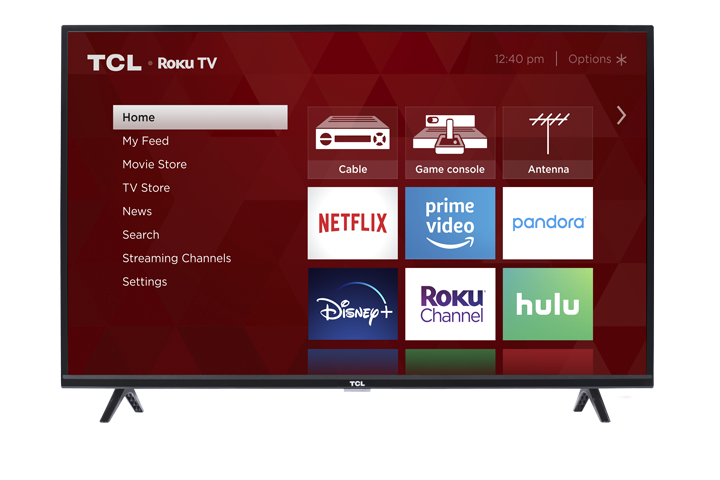

Color issues on your TV
If the picture looks washed out, tinted, or is missing color, try these steps to narrow down the cause and restore normal color.
1) Check other channels or apps
First, change channels (or try a different app/video).
If the color issue only happens on one channel or one app, the problem may be with that broadcast/stream and not your TV.
2) Confirm your video cables are connected to the correct jacks
If you’re using older A/V or component cables, make sure they match the correct input colors/labels:
Composite (single yellow video cable):
The yellow video cable must connect to the yellow VIDEO IN jack on the TV.Component (red/blue/green video cables):
The red, blue, and green video cables must connect to the matching COMPONENT IN jacks on the TV.
A cable plugged into the wrong jack can cause missing color, incorrect colors, or a distorted picture.
3) Check antenna connections (if you use an antenna)
A weak TV signal can sometimes cause picture noise or loss of color.
Make sure the antenna coax cable is firmly connected to the TV’s ANT/CABLE input.
Try repositioning or adjusting the antenna and re-check the picture.
4) Adjust the picture settings
If the connections look correct, adjust your picture settings:
Press MENU on your remote.
Use the Arrow buttons to find the Picture or Picture Quality menu.
Select Picture Controls (or similar).
Adjust settings such as Brightness, Color, Contrast, Tint, and Sharpness.
Menu variations (depending on TV model)
Some TCL TVs use slightly different button layouts or menu names, for example:
Press MENU, then use CH +/- to select the video menu, and VOL +/- to change settings.
Press MENU repeatedly to find the adjustment menu, then use CHANNEL to highlight an item and VOLUME +/- to adjust it. Press DISPLAY or CLEAR to close the menu.
Resetting picture settings
Depending on your model, pressing CANCEL or RESET, or selecting Reset while adjusting the picture may return settings to factory defaults.