

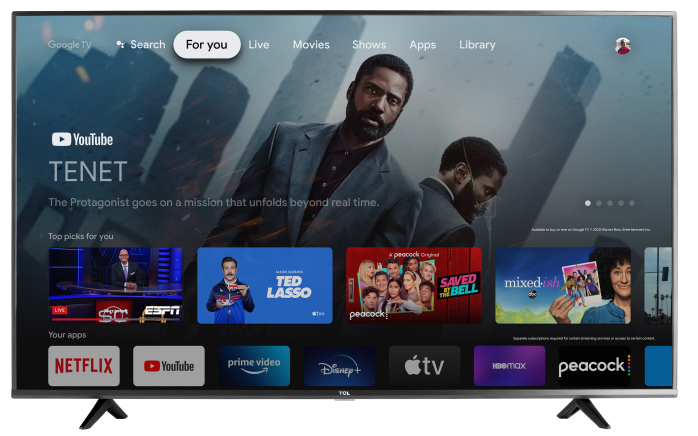
You can use the Google Home app on an iPhone/iPad (iOS) or an Android phone/tablet to control key features on your TCL Google TV, like opening the remote, adjusting volume, navigating menus, and launching apps.
What you need (iOS and Android)
Before you start, make sure:
- Your TCL Google TV is set up and connected to Wi-Fi
- Your phone/tablet is on the same Wi-Fi network as the TV
You’re signed into the same Google account on:
- Your TCL Google TV
- The Google Home app
- You have the latest version of the Google Home app
iPhone / iPad (iOS) Instructions
1) Install or update the Google Home app
- Open the App Store.
- Search for Google Home.
- Tap Get or Update.
2) Add your TCL Google TV to Google Home
- Open the Google Home app.
- Tap Devices.
- Tap Add (or +).
- Select Set up device.
- Choose New device.
- Pick your Home (or create one).
- When your TCL Google TV appears, select it.
- Follow the on-screen steps to finish setup.
3) Open the on-screen remote in Google Home
- In the Google Home app, tap Devices.
- Select your TCL Google TV.
- Tap Remote (or Open remote).
From here you can typically:
- Navigate (up/down/left/right + select)
- Use Back / Home
- Control Volume
- Type using your iPhone/iPad keyboard when a text box appears on the TV
iOS tip: If the remote connects but buttons seem delayed, close the app and reopen it, then try again.
Android Phone / Tablet Instructions
1) Install or update the Google Home app
- Open the Google Play Store.
- Search for Google Home.
- Tap Install or Update.
2) Add your TCL Google TV to Google Home
- Open the Google Home app.
- Tap Devices.
- Tap Add (or +).
- Select Set up device.
- Choose New device.
- Pick your Home (or create one).
- Select your TCL Google TV when it appears.
- Follow the on-screen steps to finish setup.
3) Open the on-screen remote in Google Home
- In the Google Home app, tap Devices.
- Select your TCL Google TV.
- Tap Remote (or Open remote).
Android tip: If the remote isn’t showing, update Google Home and restart your phone, then check again.
Using voice commands (works on iOS and Android)
If you use Google Assistant on your phone or a Google/Nest speaker, you can say:
- “Turn on the TV”
- “Turn off the TV”
- “Turn the volume up on the living room TV”
- “Open YouTube on the TV”
- “Play [movie/show] on Netflix”
Note: Some commands depend on the streaming app, account permissions, and your region.
Troubleshooting (iOS and Android)
TV doesn’t show up in Google Home
- Confirm the TV and phone are on the same Wi-Fi
- Restart the TV and your phone/tablet
- On the TV: Settings > Network & Internet (confirm connected)
- Make sure you’re signed into the same Google account on both
Remote button is missing
- Update the Google Home app
- Force close and reopen the app
- Confirm the TV is online and fully set up
Power controls don’t work
- Some setups may not support full remote power control over the network.
- Try volume or navigation first to confirm the remote connection works
- If volume/navigation works but power doesn’t, use the TV remote to power on, then use Google Home for control
Quick tips
Rename your TV in Google Home (example: Living Room TV) for easier voice commands.
Assign TVs to the correct room in the Google Home app to keep devices organized.