

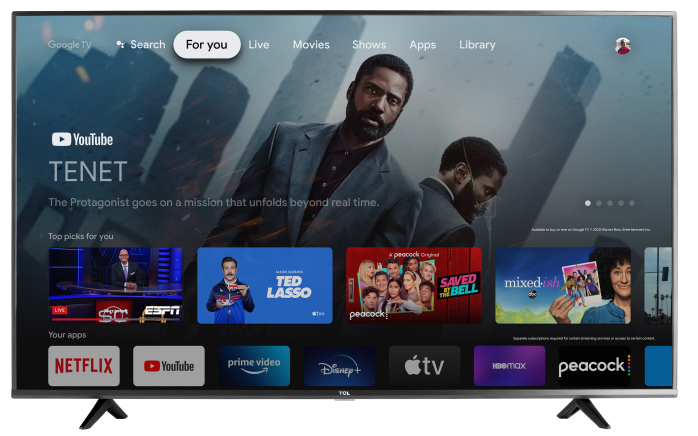
If your TCL Google TV will not connect to Wi-Fi, keeps disconnecting, shows Connected, no internet, or apps will not load, use the steps below to check the connection and get back online.
Note: Menu names and directions may vary by TCL TV model, remote type, and software version.
Start Here
Try these quick checks first:
- Make sure your home internet is working on another device, such as a phone, tablet, or computer.
- Restart your TV by unplugging it from power for 60 seconds, then plug it back in.
- Restart your modem and router by unplugging them from power for 30 seconds, then plug them back in.
- Make sure Wi-Fi is turned on in the TV settings.
- Run Check internet connection from the TV’s Network & Internet menu.
If the TV still does not connect, choose the section below that matches your issue.
Choose the Section That Matches Your Issue
- The TV does not see any Wi-Fi networks
- The TV sees the network but will not connect
- The TV says Connected, no internet
- The TV connects but keeps disconnecting
- Apps will not load, but the TV says it is connected
- Streaming buffers or freezes
- You need to forget and reconnect to Wi-Fi
- You need to test with a mobile hotspot
Check Network & Internet Status
First, check whether the TV is connected to Wi-Fi and whether it has internet access.
- Press the Settings button on your TCL Google TV remote.
- Select Settings.
- Go to Network & Internet.
- Confirm Wi-Fi is turned On.
- Look at the connected network status.
Your TV may show wording such as:
- Connected
- Internet connection: Connected
- Connected, no internet
- Not connected
If your network shows Connected or Internet connection: Connected, the TV is connected to the internet.
If you see Connected, no internet or Not connected, continue with the steps below.
Run Check Internet Connection
The TV may be connected to your Wi-Fi network but still unable to reach the internet. The built-in connection test can help confirm this.
- Press the Settings button on the remote.
- Select Settings.
- Go to Network & Internet.
- Select Check internet connection.
- Follow the on-screen results.
If the test fails, restart your TV and home network, then run the test again.
If the TV Does Not See Any Wi-Fi Networks
If no Wi-Fi networks appear in the list:
- Make sure Wi-Fi is turned On.
- Restart the TV.
- Restart your modem and router.
- Move the router closer to the TV, if possible.
- Check whether other devices can see your Wi-Fi network.
- Try a mobile hotspot to see if the TV can detect another network.
If the TV can see a mobile hotspot but not your home Wi-Fi, the issue may be related to the router, network name, or router settings.
If the TV Sees the Network but Will Not Connect
If your Wi-Fi network appears but the TV will not connect:
- Select your Wi-Fi network from the list.
- Enter the Wi-Fi password carefully.
- Make sure the password is correct and uses the same capitalization.
- Restart the TV.
- Restart your modem and router.
- Try connecting again.
If the TV still will not connect, forget the network and add it again.
Forget the Network and Reconnect
Forgetting the network removes the saved Wi-Fi password and allows you to reconnect from scratch.
- Press the Settings button on the remote.
- Select Settings.
- Go to Network & Internet.
- Select your Wi-Fi network.
- Choose Forget.
Then reconnect:
- Return to Network & Internet.
- Select your Wi-Fi network from the list.
- Enter your Wi-Fi password.
- Select Connect.
- Run Check internet connection again.
If the TV Says Connected, No Internet
If the TV connects to Wi-Fi but shows Connected, no internet, the TV is connected to your router but may not be reaching the internet.
Try these steps:
- Check whether other devices in your home can access the internet.
- Restart your modem and router.
- Restart the TV.
- Forget the Wi-Fi network and reconnect.
- Run Check internet connection again.
- Try connecting the TV to a mobile hotspot.
If other devices also cannot access the internet, contact your internet provider for help with the home network.
If other devices work normally but the TV does not, continue troubleshooting the TV connection.
Restart the TV and Network
Connectivity issues are often resolved by restarting the TV and home network.
Restart Your Modem and Router
- Unplug the modem and router from power.
- Wait 30 seconds.
- Plug the modem back in first, if separate.
- Wait for the modem lights to stabilize.
- Plug the router back in.
- Wait for the router to fully restart.
Restart Your TCL Google TV
Use one of the following methods:
Option 1: Restart from settings
- Go to Settings.
- Select System.
- Select Restart.
- Confirm the restart.
Option 2: Power cycle the TV
- Unplug the TV from power.
- Wait 60 seconds.
- Plug the TV back in.
- Turn the TV on.
After everything powers back on, go to Settings > Network & Internet and run Check internet connection again.
Improve Wi-Fi Connection Reliability
If the TV connects but streaming buffers, freezes, or drops the connection, the Wi-Fi signal may be weak or unstable.
Try these tips:
- Move the router closer to the TV, if possible.
- Avoid placing the TV inside tight cabinets or recessed spaces.
- Avoid placing the router behind furniture, inside cabinets, or near large metal objects.
- Restart the router if it has been running for a long time.
- Pause large downloads, uploads, or game updates on other devices.
- Disconnect devices that are not being used.
- If your router has separate network names, try both the 2.4 GHz and 5 GHz networks.
In general:
- 2.4 GHz usually has better range.
- 5 GHz is often faster but works best at shorter distances.
If Only One App Will Not Load
If the TV says it is connected to the internet but one app will not open or stream, the issue may be with that app instead of the TV’s Wi-Fi connection.
Try these steps:
- Open a different app to see if it works.
- Close and reopen the affected app.
- Restart the TV.
- Check for a TV system update.
- Check for an app update, if available.
- Uninstall and reinstall the app, if your TV allows it.
To check for a system update:
- Go to Settings.
- Select System.
- Select About.
- Select System update.
Menu wording may vary by model and software version.
Test with a Mobile Hotspot
Testing with a mobile hotspot can help determine whether the issue is with the TV or the home network.
- Turn on the mobile hotspot on your phone.
- On the TV, go to Settings > Network & Internet.
- Select the phone’s hotspot name.
- Enter the hotspot password.
- Run Check internet connection.
If the TV connects to the hotspot, the TV’s Wi-Fi is likely working, and the issue may be related to the home router, modem, internet provider, or network settings.
If the TV cannot connect to the hotspot either, continue troubleshooting or gather your TV information for additional support.
Note: Mobile hotspot availability and data usage depend on your mobile carrier and plan.
Check for a System Update
If the TV connects to the internet but has connection issues, check for a software update.
- Go to Settings.
- Select System.
- Select About.
- Select System update.
- Install any available update.
After the update completes, restart the TV and check the connection again.
Helpful Tips
- Make sure Wi-Fi is turned on.
- Confirm your Wi-Fi password is entered correctly.
- Restart both the TV and your modem/router.
- Use Check internet connection to confirm internet access.
- Forget the Wi-Fi network and reconnect if needed.
- Try both 2.4 GHz and 5 GHz networks, if available.
- Test with a mobile hotspot to help isolate the issue.
- If only one app is affected, troubleshoot the app instead of the Wi-Fi connection.