

If an app will not install and stays stuck on “Download Pending,” the TV may be having trouble connecting to the internet, the Google Play Store may be stuck, or the TV may not have enough available storage.
Try the steps below in order.
Step 1: Check Your Internet Connection
A weak or disconnected network is one of the most common reasons an app download may stay pending.
- From the TV Home screen, go to Settings.
- Select Network & Internet.
- Confirm the TV is connected to your Wi-Fi network.
- If the TV is connected but the internet seems slow, restart your modem/router:
- Unplug the modem/router from power.
- Wait 30 seconds.
- Plug it back in and wait for it to fully reconnect.
After the internet connection is restored, try installing the app again.
Tip: If possible, try connecting the TV to a different network, such as a mobile hotspot. This can help confirm whether the issue is related to your home Wi-Fi network.
Step 2: Turn On System Speedup, If Available
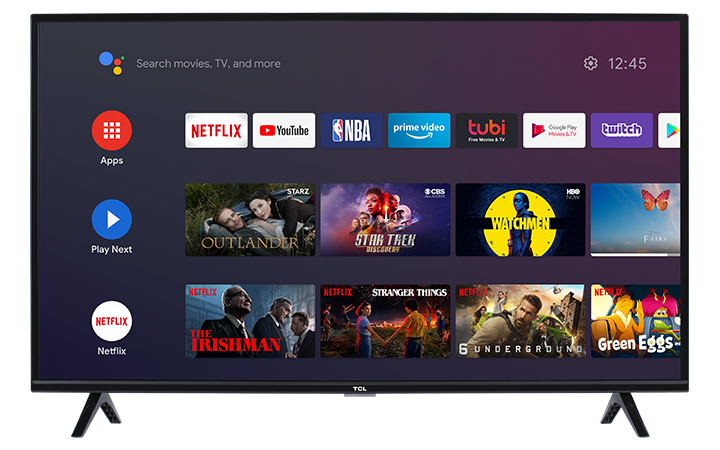
Some TCL Android TV and Google TV models include a System Speedup option in the Home screen launcher. This can help clear temporary system activity that may interfere with app downloads.
- From the TV Home screen, look near the top-right corner of the screen.
- Select System Speedup, if shown.
- Turn it On or run the speedup option, depending on how it appears on your TV.
- Return to the Google Play Store and try installing the app again.
Note: Not all TCL Android TV or Google TV models have this option. If you do not see System Speedup, continue to the next step.
Step 3: Restart the TV
Restarting the TV can clear a stuck download or background process.
- Go to Settings.
- Select System.
- Select Restart.
Depending on your model, the restart option may also appear under Settings > System > Power > Restart.
If you do not see a restart option:
- Unplug the TV from the power outlet.
- Wait 30 seconds.
- Plug the TV back in.
- Turn the TV on and try the download again.
Step 4: Check Available Storage
If the TV is low on storage, apps may not download or install correctly. Google notes that low storage can stop apps from downloading and installing.
- Go to Settings.
- Select System.
- Select Storage.
- Check the available storage space.
If storage is low, uninstall apps you no longer use:
- Go to Settings > Apps.
- Select See all apps.
- Choose an app you no longer need.
- Select Uninstall.
After freeing up storage, try installing the app again.
Step 5: Check Date and Time Settings
Incorrect date or time settings may cause issues with Google services, including app downloads.
- Go to Settings.
- Select System.
- Select Date & Time.
- Turn on Automatic date & time, if available.
After updating the date and time settings, return to the Google Play Store and try the download again.
Step 6: Cancel the Pending Download and Try Again
If the app is still stuck on Download Pending, cancel the download and restart it.
- Open the Google Play Store.
- Find the app that is stuck.
- Select Cancel, if available.
- Search for the app again.
- Select Install.
Step 7: Close and Reopen the Google Play Store
If the Google Play Store is not responding correctly, closing and reopening it may help.
- Go to Settings.
- Select Apps.
- Select See all apps.
- Select Google Play Store.
- Select Force stop.
- Open the Google Play Store again and retry the download.
Step 8: Clear the Google Play Store Cache
Clearing the Google Play Store cache can help remove temporary data that may be causing the download to stay pending.
- Go to Settings.
- Select Apps.
- Select See all apps.
- Select Google Play Store.
- Select Clear cache.
- Restart the TV.
- Try installing the app again.
Note: Menu names may vary slightly by model and software version.
Step 9: Check for a System Update
A system update may improve app compatibility and Google Play Store performance.
- Go to Settings.
- Select System.
- Select About.
- Select System update.
- If an update is available, install it.
After the update is complete, restart the TV and try installing the app again.
Step 10: Remove and Re-Add Your Google Account
Try this step only after the steps above. Removing and re-adding your Google account may help if the issue is related to account syncing.
- Go to Settings.
- Select Accounts & Sign In.
- Select your Google account.
- Choose Remove account.
- Restart the TV.
- Add the Google account again.
- Open the Google Play Store and try installing the app.
Important: Removing your Google account may sign you out of Google services on the TV. You may need to sign back into apps afterward.
If the App Still Will Not Download
If the app still stays on Download Pending, try the following:
- Confirm the app is compatible with your TV.
- Try downloading a different app to see if the issue affects all apps or only one app.
- Restart your modem/router again.
- Try a different Wi-Fi network or mobile hotspot.
- Make sure the TV has enough available storage.
- Contact TCL Support if downloads continue to fail.
Helpful Reminder
For best results, keep the TV connected to a stable internet connection and avoid unplugging the TV while apps or system updates are downloading.