

Keeping your Android TV software up to date helps improve performance, stability, security, and app compatibility. Use the steps below to check for and install the latest software update.
Before you start
- Make sure the TV is connected to the internet (Wi-Fi or Ethernet).
- Plug the TV directly into a wall outlet (avoid power strips during the update if possible).
- Do not unplug the TV while an update is installing.
1) Check your current connection first
Software updates require a stable internet connection.
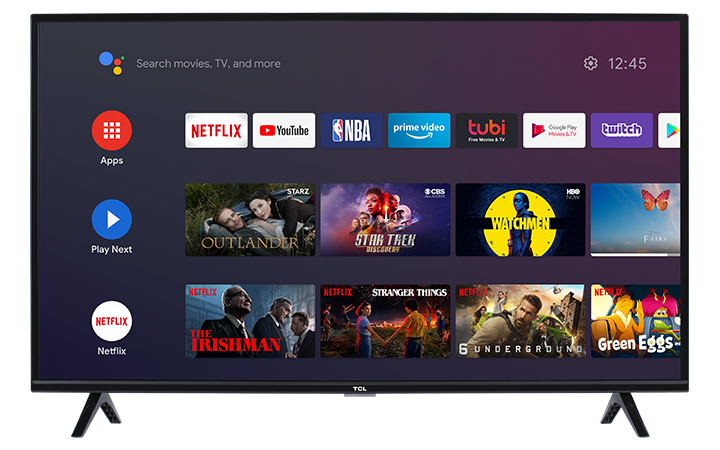
- Press Home on the remote.
- Go to Settings (gear icon).
- Select Network & Internet.
- Confirm you are Connected to your network.
Tip: If the TV shows “Connected, no internet,” reboot your modem/router and try again.
2) Update the TV software using the Settings menu
Most Android TVs can check and install updates directly from the internet.
- Press Home on the remote.
- Go to Settings.
- Select Device Preferences (or About, depending on your TV).
- Choose About.
- Select System update.
- Choose Check for update.
- If an update is available, select Download/Install and follow the on-screen prompts.
What to expect
- The TV may download the update, then restart to install it.
- The update process can take several minutes. The TV may restart more than once.
3) Turn on automatic updates (recommended)
This helps keep your TV current without having to manually check.
- Press Home > Settings.
- Go to Device Preferences > About > System update.
- Enable any available options such as:
- Auto-download updates
- Auto-install updates (if shown)
Menu names vary slightly by Android TV version.
4) If the TV won’t find an update, try these quick fixes
If you select Check for update and nothing happens, or you get an error:
A) Restart (power cycle) the TV
- Turn the TV off.
- Unplug it from the wall outlet.
- Wait 60 seconds.
- Plug it back in and turn it on.
- Try the update again.
B) Confirm the date/time is correct
- Incorrect time settings can cause update connection issues.
- Settings > Device Preferences > Date & time
- Enable Automatic date & time (and Automatic time zone, if available).
C) Improve network stability
- If on Wi-Fi, move closer to the router or try a different Wi-Fi network.
- If possible, use a wired Ethernet connection for the update.
- Pause heavy streaming/downloads on other devices while updating.
5) If the TV is stuck on “Downloading” or “Installing”
- Wait at least 30 minutes (some updates take longer depending on size and connection).
- If the screen appears frozen and there’s no progress after a long period:
- Unplug the TV for 60 seconds.
- Plug it back in and power on.
- Go back to System update and try again.
6) If you can’t access the menu to update
If you can’t see the Home screen/menu due to a blank screen or the TV won’t respond, you may need to resolve that issue first (power cycle, input checks, etc.). If the TV still won’t display the menu, a reset may be required before updates can be applied.
7) Contact Support
If the TV will not update, repeatedly fails, or becomes stuck after an update attempt, contact TCL Support for help.