

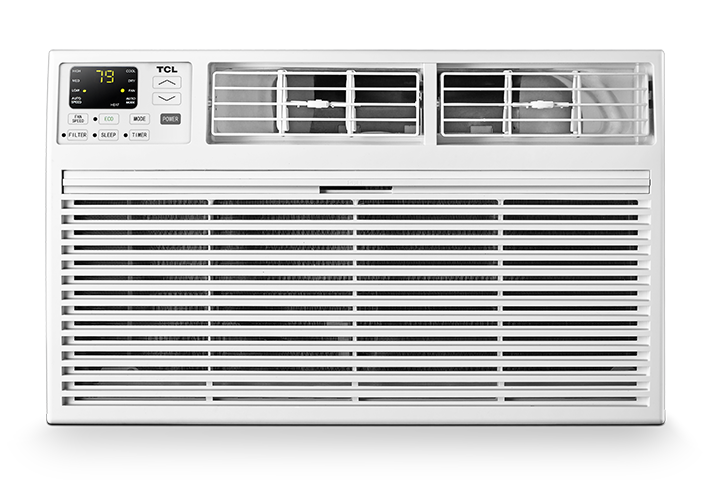
This article explains how to connect the following Matter-enabled TCL appliances to the TCL Home app:
- Matter AC
- Matter Window AC
- Matter Portable AC
- Matter Dehumidifier
Available options and pairing instructions may vary by product model, mobile device, app version, and router.
Before You Begin
Make sure you have:
- A compatible smartphone or tablet
- The latest version of the TCL Home app
- Your 2.4 GHz Wi-Fi network name and password
- Access to the appliance and its remote control, if included
- The Matter QR code or numeric setup code supplied with the appliance
Keep the Matter QR code in a safe place. Each code identifies a specific appliance and should not be shared publicly.
Step 1: Download the TCL Home App
- Open the App Store on an iPhone or iPad or the Google Play Store on an Android device.
- Search for TCL Home.
- Download and install the app.
- Open the app and create a TCL account or sign in to your existing account.
Why this is important: The TCL Home app is required to add, manage, and control the appliance.
Step 2: Prepare Your Phone or Tablet
- Connect your phone or tablet to the 2.4 GHz Wi-Fi network you want the appliance to use.
- Turn on Bluetooth.
- Allow the TCL Home app to access Bluetooth, Location, Nearby Devices, and Local Network when prompted.
- Temporarily turn off mobile data, VPN services, iCloud Private Relay, ad blockers, or private DNS services.
- Keep your phone near the appliance during setup.
Why this is important: These settings allow the app to discover the appliance and remain connected to the correct Wi-Fi network throughout setup.
Step 3: Add the Appliance
- Open the TCL Home app.
- Tap the + or Add Device button.
- Select the option that matches your appliance:
- Matter AC
- Matter Window AC
- Matter Portable AC
- Matter Dehumidifier
Why this is important: Selecting the correct product type provides the appropriate pairing instructions and controls.
Step 4: Place the Appliance in Pairing Mode
Follow the instructions displayed in the TCL Home app.
For compatible air conditioner models that use the remote’s Display button:
- Press the Display button six times.
- Wait approximately 8–10 seconds.
- The appliance should beep twice and display CF.
- When the app asks whether you heard the beeps, tap For Sure.
Pairing steps may differ for dehumidifiers and other models. If your appliance does not display CF, follow the instructions in the app or the product’s user manual.
Why this is important: Pairing mode makes the appliance discoverable to the TCL Home app.
Step 5: Scan the Matter Setup Code
- Scan the Matter QR code supplied with the appliance.
- If scanning does not work, select the option to enter the numeric setup code manually.
- Make sure you use the code provided with that specific appliance.
If an Uncertified Accessory message appears, confirm that you scanned the code supplied with the correct TCL appliance. If the information matches, select Add Anyway to continue.
Why this is important: The Matter setup code securely identifies the appliance being added.
Step 6: Connect the Appliance to Wi-Fi
- Select your 2.4 GHz Wi-Fi network when prompted.
- Carefully enter the Wi-Fi password.
- Keep the TCL Home app open and remain near the appliance.
- Allow several minutes for setup to finish.
Why this is important: Closing the app, leaving the area, or switching networks can interrupt the connection.
If Setup Stalls
If setup stops, the phone and appliance may have started pairing but could not complete the network connection.
Complete the following steps in order.
Step 1: Check Whether the Appliance Was Added
Return to the TCL Home app’s Home screen and check the device list.
- If the appliance appears, select it and test one of its controls.
- If it does not appear or shows as offline, continue troubleshooting.
Why this is important: The appliance may have completed pairing even if the progress screen did not finish correctly.
Step 2: Close and Reopen the TCL Home App
- Fully close the TCL Home app.
- Reopen it and try setup again.
Why this is important: This can clear a temporary app or pairing-screen error.
Step 3: Check the Phone’s Connection
- Confirm that the phone is still connected to the correct 2.4 GHz Wi-Fi network.
- Turn off mobile data temporarily.
- Temporarily disable any VPN, iCloud Private Relay, ad blocker, or private DNS service.
- Confirm that Bluetooth and the required app permissions are enabled.
Why this is important: Network switching, blocked local access, or missing permissions can prevent setup from completing.
Step 4: Restart the Phone or Tablet
- Restart the mobile device.
- Reconnect it to the 2.4 GHz Wi-Fi network.
- Open the TCL Home app and try again.
Why this is important: Restarting clears temporary Bluetooth, Wi-Fi, and app communication problems.
Step 5: Restart the Appliance
- Unplug the appliance for approximately three minutes.
- Plug it back in.
- Place it in pairing mode again.
- Restart setup in the TCL Home app.
Why this is important: This clears the appliance’s temporary connection state and starts a new pairing session.
Step 6: Reset CF Pairing Mode
For models that use the Display button:
- Press the Display button six times.
- Wait approximately 8–10 seconds.
- Confirm that the appliance beeps twice and displays CF.
- Try adding the appliance again.
Why this is important: The previous pairing attempt may have caused pairing mode to expire or become unresponsive.
Step 7: Restart the Router
- Unplug the router for approximately 15 seconds.
- Reconnect it and wait for the Wi-Fi network to fully return.
- Reconnect the phone to the 2.4 GHz network.
- Try setup again.
Why this is important: Restarting the router can clear temporary connection or device-assignment problems.
Step 8: Try AP Mode
If CF Mode continues to fail, check whether your appliance supports AP Mode.
- Reset the appliance’s Wi-Fi setup.
- Follow the AP Mode instructions in the TCL Home app or product manual.
Why this is important: AP Mode uses a different connection method and may work when CF Mode cannot complete setup.
Step 9: Try Another Mobile Device
If available, install the TCL Home app on another compatible phone or tablet and try setup again.
Why this is important: This helps determine whether the problem is related to the original phone, its permissions, or its network settings.
Additional Router Checks
If the appliance still will not connect:
- Avoid guest, public, business, or apartment-managed Wi-Fi networks.
- Make sure devices on the network are allowed to communicate with one another.
- Confirm that IPv6 is enabled for the router’s local network.
- If the router combines 2.4 GHz and 5 GHz under one network name, temporarily separate the bands or disable 5 GHz during setup.
- Move the router or appliance closer together, if possible.
Why this is important: Matter requires compatible local-network communication. Guest networks, device isolation, weak signals, or certain router settings may block setup.
Router settings vary. Contact your internet provider or router manufacturer if you need help checking these options.
If the Matter Code Does Not Work
- Confirm that you are using the Matter code supplied with the correct appliance.
- Try entering the numeric setup code instead of scanning the QR code.
- Make sure the entire QR code is visible, clean, and well-lit.
- If the appliance was previously connected to another smart-home platform, remove it from that platform or use its option to add the Matter device to another service.
- Reset the appliance’s Wi-Fi settings before trying again, if necessary.
Why this is important: A damaged, incorrect, or previously commissioned setup code may prevent the app from completing the connection.
If the label is missing or unreadable and no numeric code is available, contact TCL Support. Do not use a generic Matter QR code from another appliance.
Configure and Test the Appliance
After setup is complete, select the appliance in the TCL Home app.
Available air-conditioner controls may include:
- Temperature
- Fan speed
- Operating mode
- Schedules
Available dehumidifier controls may include:
- Desired humidity
- Fan speed
- Operating mode
- Schedules
Test one available control to confirm that the appliance responds.
Why this is important: A successful control test confirms that the appliance is connected and communicating with the app.
Connect a Voice Assistant
- You may be able to connect the appliance to Google Assistant or Amazon Alexa.
- Follow the instructions in the TCL Home app or the voice assistant’s app to link your account.
Why this is important: Linking a supported voice assistant allows compatible appliance functions to be controlled using voice commands.
Setup Complete
- Your Matter-enabled TCL appliance should now appear in the TCL Home app and respond to its available controls.
- Features may vary depending on the appliance, model, TCL Home app version, router, and connected smart-home platform.
- If setup continues to stop at 80% after completing all troubleshooting steps, contact TCL Support for additional assistance.