

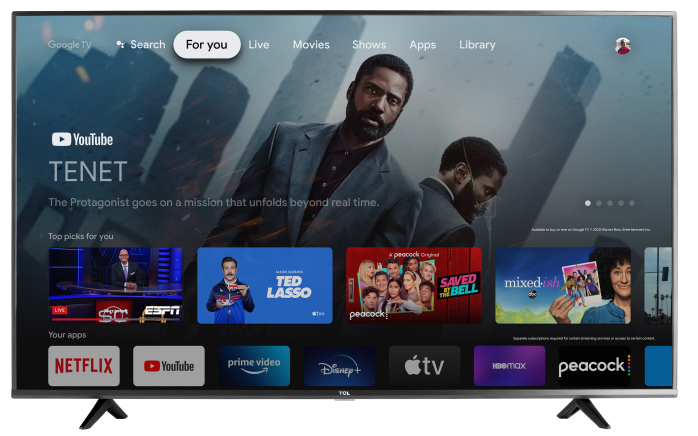
You can use Alexa to control many TCL Google TV functions with your voice, such as turning the TV on or off, adjusting volume, launching apps, switching inputs, and controlling playback. To use this feature, you’ll need the Alexa app on your mobile device and the TCL Skill for Alexa. TCL also notes that TCL Google TVs include Alexa support for voice control and entertainment search.
Before You Start
Make sure you have:
- A TCL Google TV connected to the internet
- An Amazon account
- The Alexa app installed on your phone or tablet
- An Alexa-enabled device, such as an Echo speaker, or the Alexa app on your mobile device
- Your TV and Alexa device connected to the same Wi-Fi network.
For the best experience, make sure your TCL Google TV and Alexa app are both updated. TCL recommends checking device compatibility, software/firmware updates, Wi-Fi strength, and the correct Alexa skill during setup.
Step 1: Set Up Your TCL Google TV
- Turn on your TCL Google TV.
- Make sure the TV is connected to Wi-Fi or Ethernet.
- Press the Settings button on your remote, or select the Settings icon from the Google TV home screen.
- Go to Network & Internet and confirm the TV is connected to your home network.
- Return to Settings.
- Go to Apps.
- Select See all apps.
- Look for Work with Alexa.
Note: Menu names may vary slightly by model or software version.
Step 2: Get the Alexa Setup Code from Your TV
- Open the Work with Alexa app on your TCL Google TV.
- Follow the on-screen instructions.
- Sign in or select the option to get a setup code.
- Leave the code displayed on the TV screen.
You will use this code in the Alexa app to link your TCL Google TV.
Step 3: Enable the TCL Skill in the Alexa App
- Open the Alexa app on your phone or tablet.
- Tap More.
- Select Skills & Games.
- Search for TCL or TCL Assistant.
- Select the TCL skill.
- Tap Enable to Use.
- Follow the prompts to link your TV.
- Enter the code shown on your TCL Google TV, if prompted.
- Complete the setup in the Alexa app.
Once the skill is enabled and the TV is linked, Alexa should discover your TCL Google TV as a controllable device. TCL’s general Alexa setup guidance also recommends enabling the appropriate smart TV skill and linking the TV to your account in the Alexa app.
Step 4: Try Alexa Voice Commands
After setup is complete, try saying:
- “Alexa, turn on the TV.”
- “Alexa, turn off the TV.”
- “Alexa, turn up the volume on the TV.”
- “Alexa, turn down the volume on the TV.”
- “Alexa, mute the TV.”
- “Alexa, launch Netflix on the TV.”
- “Alexa, pause the TV.”
- “Alexa, play the TV.”
- “Alexa, switch to HDMI 1.”
- “Alexa, switch to HDMI 2.”
You may need to use the TV name shown in the Alexa app. For example, if your TV is named “Living Room TV,” say:
“Alexa, turn up the volume on Living Room TV.”
Helpful Tips
If Alexa controls more than one device in your home, rename your TCL Google TV in the Alexa app to something simple, such as:
- Living Room TV
- Bedroom TV
- TCL TV
To rename the TV:
- Open the Alexa app.
- Tap Devices.
- Select your TCL Google TV.
- Tap the Settings icon.
- Edit the device name.
A simple name makes voice commands easier and helps Alexa know which TV you want to control.
If Alexa Cannot Find or Control Your TCL Google TV
Try these steps:
- Make sure your TCL Google TV is connected to the internet.
- Make sure your Alexa device or Alexa app is connected to the internet.
- Confirm both devices are on the same Wi-Fi network.
- Restart your TCL Google TV.
- Restart your Alexa device or close and reopen the Alexa app.
- Check for a system update on your TCL Google TV.
- Check that the TCL skill is enabled in the Alexa app.
- Disable and re-enable the TCL skill if the TV was previously linked.
- Try discovering devices again in the Alexa app.
To discover devices:
- Open the Alexa app.
- Tap Devices.
- Tap the + icon.
- Select Add Device.
- Follow the prompts to search for your TV.
If Alexa Can Turn the TV Off but Not On
Some TV models or settings may limit Alexa’s ability to power the TV back on after it has been turned off. If this happens:
- Make sure your TV is connected to Wi-Fi.
- Check for any available TV software updates.
- Look for settings related to Network Standby, Quick Start, Fast Start, or Power On by Network.
- Turn that setting on if available.
- Restart the TV and try the Alexa command again.
If your model does not include this setting, you may still be able to use Alexa for other controls after the TV is powered on manually.
What Alexa Can Help With
Alexa can help with common TV controls, including:
- Power
- Volume
- Mute
- Playback controls
- App launching
- Input switching
- Basic content search
Available commands may vary by TV model, app, region, Alexa device, and software version.
Still Having Trouble?
If Alexa still cannot find or control your TCL Google TV, confirm the TV model supports Alexa control, then remove and re-add the TV in the Alexa app. You can also restart your router, reconnect the TV to Wi-Fi, and try the setup again.